
Tagged with " php"

Filter out empty lines in WordPress

Feb 18, 2013 by     No Comments    Posted under: archives

Well this is annoying… I’m trying to add two captioned images in the WordPress editor and the damn Visual Editor keeps adding an empty paragraph between them. I don’t want an empty paragraph there — I got a nice CSS setup going on in the front end and that empty line is messing it up.

Extra Paragraph

The only way I could find to take care of this (other than reinventing the Visual Editor) was to add a filter to the WordPress content and have any occurrence of <p>&nbsp;</p> removed from the HTML.

This code goes in functions.php (which is in your theme folder):

// Strip out all <p>&nbsp;</p> from the content
function strip_empty_lines($content) {
    $content = str_replace('<p>&nbsp;</p>','',$content);
    return $content;
}
add_filter ('the_content', 'strip_empty_lines');

For your reference:

Don’t let the image resizer crash your server

Feb 2, 2013 by     No Comments    Posted under: archives

This is the story of many page requests in a short amount of time. Over 500 requests from the same IP in under 10 seconds. They all pinged the TimThumb script (a thumbnail generator, very popular among WordPress themes and plugins) asking it for resized, uncached images. The fact that this was done in one go saturated 16GB of RAM on the server and stopped other processes running, thus crashing the server.

The client was unhappy with their site being offline for the past day and a half (they were in fact losing business while being offline) and in reply the host expressed yet more serious concerns:

Naturally as you can imagine, we have to consider other customers on this platform, several of whom have complained about these crashes. Like yourself, downtime costs us money. We either:
a) need to be absolutely sure that you yourselves, armed with the information above, know exactly what the issue is and can rectify it.
b) cut our losses, offer you a refund pro-rata and ask you to move your hosting account away from ourselves.

The memory usage of the script does imply however that you will have the same issue anywhere else. No shared provider will accept a single site making use of 16GB of memory.

So we either needed to guarantee that our website wouldn’t be a trouble maker in the future, or pack our stuff and move to our mother’s.

There could have been multiple reasons for the hundreds of requests. Someone may have been scrapping the site (an online store) for product images. Someone may have been pinging the PHP image resizer and asking it for fresh images just for fun. One of our own Ajax scripts may have been doing that accidentally under certain circumstances. Hell, one of our Ajax scripts may have become self-aware and was trying to take over the hosting company for all I knew. I needed a solution to prevent any of these.

“500 requests in 10 seconds” I thought…  “No single IP would need to make more than a dozen requests in any given 5 seconds.”

And there’s the answer. The scripts shouldn’t honor more than 10 requests in under 5 seconds. You may be tempted to simplify that to 2 requests per second, but don’t. Sometimes you go from one page to another in under one second, or you open 5 new tabs in a couple of seconds and there’s nothing illegitimate about that. In fact, let’s change the numbers to say that “no more than 40 requests in 20 seconds” are acceptable from the same IP.

Throttling the requests on a per IP basis

No more than 40 requests in 20 seconds are acceptable from the same IP is materialized in the PHP script I will paste below. The code would need to be saved as “limit.php” and included using:

include_once('limit.php');

…at the top of any scripts that are prone suck a lot of memory. If you’re using WordPress and are paranoid enough (as I was at the time) you can include it at the top of your theme’s functions.php file. But even more importantly, if your theme is using timthumb.php or another image resizer you should also include it at the top of that file.

TimThumb is very susceptible to suck a lot of memory. It does set a “MEMORY_LIMIT”, but that only applies each time the script runs. That means processing a very large image will be prevented by default, but running the TimThumb script 500 times on regular-sized images within a few seconds will not be prevented.

If you have the timthumb.php file somewhere on your server, anyone could write a simple JavaScript that generates different URLs and continuously requests new images from your TimThumb script until the server goes the way of the Titanic.

A simple PHP throttling script

These are the contents of “limit.php”:


The code, explained

I’ll go through every piece of it below, but you’ll probably need to know how PHP sessions work to completely understand everything.

The limit_requests() function takes two parameters: the number of allowed requests ($nr with a default of 40) and a number of seconds ($t with a default of 20) — the time interval in which those requests can be made.

We will use a session to store a couple of variables:

  • $_SESSION['hits'] — the number of hits (requests) made in the last interval
  • $_SESSION['tzero'] — a starting point for the time interval which we’ll use to check how much time has passed (by comparing it with the current time)

We will only start a session if one isn’t currently active:

if (!session_id()) {
  start_session_based_on_ip();
}

Instead of PHP’s default “session_start()” we use a custom start_session_based_on_ip() function. If we only used session_start() the script would have worked exactly the same except a malicious user could have bypassed it by turning off their cookies. So instead we’re giving our session an id based on the visitor’s IP address.

if( !isset($_SESSION['tzero']) ) {
  $_SESSION['tzero']=time();
}

If $_SESSION['tzero'] isn’t set, it means it’s the first time this user is running the script and we’ll set it to the current time.

$since_interval_start = time() - $_SESSION['tzero'];

How much time (in seconds) has passed since $_SESSION['tzero']. We’ll need this below.

if( $since_interval_start > $t ) {
  $_SESSION['tzero'] = time();
  $_SESSION['hits'] = 1;
} else {
  $_SESSION['hits']++;
}

If $since_interval_start is larger than our time interval it means our interval is up. We reset ['tzero'] to the current timestamp (thus we start a new interval) and the hits to 1.

If not (the else bit) we increment the hits.

if( $_SESSION['hits'] > $nr ) {
  die('<h1>Too many requests!</h1> You will be able to make a new request in '.($t-$since_interval_start).' seconds.');
}

This is the most important part. If the number of hits exceeded the $nr limit we kill the running script, effectively preventing any future requests until the time interval runs out (at which point a new interval will start and the hits will be reset — see the previous paragraph).


Check out a demo of the script here. If you Refresh the page a few times, you’ll see the hit tracker increase.


Where else to use it

The best place to include this script would be CPU intensive PHP programs to prevent them from being repeatedly accessed from the same machine. I’m thinking PHP scripts that generate images, generate PDF files, scripts that work with audio or video files, scripts that compress files into archives.

PHP Screencast: Hidden Captcha

Sep 7, 2009 by     11 Comments    Posted under: archives

As I was saying in a past–not so documented–article, this is how the Hidden Captcha concept works:

Does the user have JavaScript enabled?

If yes, they’re okay — let’em comment, no annoying captcha required.

No? We’ve got a suspect. Read them their rights and serve them the ultimate “are you human?” test.

I made this 5 minute screencast to earn fame and fortune on Nettuts, but I’m also posting it here along with some textual comments. Figured I’d make it easier for you to copy/paste the whole 2 lines of JavaScript.

Here’s what you start with, the source code from this tutorial.

(Note: be sure to have the Arial font file called arial.ttf in the fonts folder–copy it from your System in there because their archive does not come with it).

This is the JavaScript/PHP I’m pasting in:

<script type="text/javascript">// <![CDATA[
  document.getElementsByName('code')[0].value = '<?php echo $string; ?>';
  document.getElementById('captcha').style.display = 'none';
// ]]></script>

Both lines of JavaScript work on elements from this chunk of HTML:

<div id="captcha">
  <img src="captcha.php" alt="" /><input type="text" name="code" /> Are you human?
</div>

The first line of JavaScript sets the correct value for the code text field.

And the second line of JavaScript sets display:none to the captcha div, thus hiding it from anyone with JavaScript enabled.

Hidden Captcha instead of Akismet?

(more…)

PHP Tutorial: Build a backend manager for Smooth Gallery

Oct 14, 2008 by     13 Comments    Posted under: archives

In this tutorial I’ll walk you through the steps involved in building a databaseless PHP admin section for Smooth Gallery.

When done, without much effort you should be able to adapt the code to fit any similar JavaScript image gallery(/slider/switcher/swapper… whatever).

So let’s take a look at it:
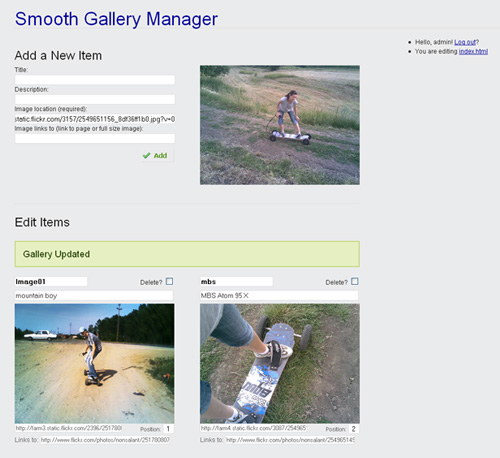
Smooth Gallery Manager

Smooth Gallery Manager

As mentioned on the manager page, the password is “demo” and you don’t have sweat about removing/adding/reordering images—the manager in the demo resets the file to an initial input each time a user logs in.

For faster testing: right click some photo from the internet, select copy image location and paste it in the Add New Item/Image location field (that’s the only required field). Then press Add. Then in the Edit Items part copy and paste image locations from one item to another and then update it.

You might want to download the gallery + manager before continuing:

zip Download Smooth Gallery Manager (1906 downloads) — Databaseless PHP admin pannel for Smooth Gallery.

After you do, open up manager.php and follow along. Only the more important parts ware discussed below, the rest is commented in the file.

So how come no databases?

It’s an image gallery, it’s not gonna have thousands of entries. There’s not much justification in creating a database for 5-20 items. We’ll keep it all in the HTML.

And this will give us a chance to work with a really neat tool: PHP Simple HTML DOM Parser. This HTML parser written in PHP5+ is going to save us a lot of work. And I think this won’t be the last you hear of it here on Vile Works.

1. The logic behind it, in plain English

We’re going to have a simple log in/log out functionality, we don’t want anyone who knows the manager’s URI to be able edit our gallery.

After the log in, two main options will be available: add new item and edit existing items. …And a log out link.

if logged in
	if received 'add item'
		add the item;
	display 'add item' form;
	if received 'update items'
		update all the items;
	display 'update items' form;
	display 'log out' link;
else
	display 'log in' form;

The conditioned actions “if received ‘add item’ -> add the item” and “if received ‘update items’ -> update the items” are placed in the code before their forms so that they will display a success or error message in the page just above the form that was submitted.

The “add new item” functionality will add a new item at the beginning of the gallery: the image along with its title, description and a link to another page.

The “update items” will allow us to:

  • change the items’ titles, descriptions, images and the URL the images link to
  • delete items
  • and to reorder the items

(more…)

Using captcha without displaying it

Oct 1, 2008 by     18 Comments    Posted under: archives

How I use captcha without making my users complete the barely readable word

Capthca sucks. For more information on how much captcha can suck see John Willis’ post Top 10 Worst Captchas.Bad Captcha
But at the same time it can be really annoying for webmasters to have their forms unprotected with all the spam bots running free out there.

What I wanted was to have the commenting feature protected against spam bots without having the innocent human users ruining their eyes on captcha like images, or complete any mathematical equation or any other additional question fields.

One very important difference between a spam bot and a human using a web browser is that the first can’t run JavaScript code. However, this isn’t a perfect criteria of selection, because there are humans browsing the web using browsers without JavaScript support (Opera Mini for mobile devices for example).

My ideea (and as I did some Google searches, I found out other people had similar ideas) was the followig algorithm:

Does the user have JavaScript enabled?
If yes, he’s ok. Let him comment.
No? He’s a suspect. Read him his rights and give him the ultimate “are you human?” test.

To do this I left the captcha system enabled and in place and wrote 2 extra lines of JavaScript that:

//complete the text field with the correct word from the image:
$('secretword').value='nospam';
//hide the div containing the captcha image and the text field:
$('captcha').style.display='none';

(more…)