VileWorks

PHP Screencast: Hidden Captcha

As I was saying in a past–not so documented–article, this is how the Hidden Captcha concept works:

Does the user have JavaScript enabled?
If yes, they’re okay — let’em comment, no annoying captcha required.
No? We’ve got a suspect. Read them their rights and serve them the ultimate “are you human?” test.

I made this 5 minute screencast to earn fame and fortune on Nettuts, but I’m also posting it here along with some textual comments. Figured I’d make it easier for you to copy/paste the whole 2 lines of JavaScript.

Here’s what you start with, the source code from this tutorial.
(Note: be sure to have the Arial font file called arial.ttf in the fonts folder–copy it from your System in there because their archive does not come with it).

This is the JavaScript/PHP I’m pasting in:

<script type="text/javascript">
<!--	
	document.getElementsByName('code')[0].value = '<?php echo $string; ?>';
	document.getElementById('captcha').style.display = 'none';
 
-->
</script>

Both lines of JavaScript work on elements from this chunk of HTML:

<div id="captcha">
	<img src="captcha.php"/>
	<p><input type="text" name="code" /> Are you human?</p>
</div>

The first line of JavaScript sets the correct value for the code text field.
And the second line of JavaScript sets display:none to the captcha div, thus hiding it from anyone with JavaScript enabled.

Hidden Captcha instead of Akismet?

Continue reading…

12 Comments.

PHP Tutorial: Build a Backend Manager for Smooth Gallery

In this tutorial I’ll walk you through the steps involved in building a databaseless PHP admin section for Smooth Gallery.

When done, without much effort you should be able to adapt the code to fit any similar JavaScript image gallery(/slider/switcher/swapper… whatever).

So let’s take a look at it:
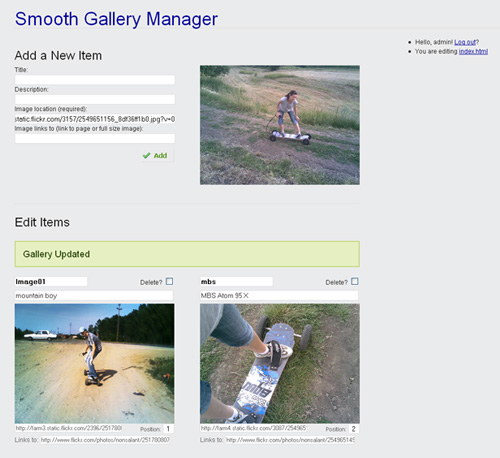
Smooth Gallery Manager

Smooth Gallery Manager

As mentioned on the manager page, the password is “demo” and you don’t have sweat about  removing/adding/reordering images—the manager in the demo resets the file to an initial input each time a user logs in.

For faster testing: right click some photo from the internet, select copy image location and paste it in the Add New Item/Image location field (that’s the only required field). Then press Add. Then in the Edit Items part copy and paste image locations from one item to another and then update it.

You might want to download the gallery + manager before continuing:

http://www.vileworks.com/wp-content/plugins/downloads-manager/img/icons/winzip.gif download: Smooth Gallery Manager (202.90KB)
clicks: 1687
description: Databaseless PHP admin pannel for Smooth Gallery.

After you do, open up manager.php and follow along. Only the more important parts ware discussed below, the rest is commented in the file.

So how come no databases?

It’s an image gallery, it’s not gonna have thousands of entries. There’s not much justification in creating a database for 5-20 items. We’ll keep it all in the HTML.

And this will give us a chance to work with a really neat tool: PHP Simple HTML DOM Parser. This HTML parser written in PHP5+ is going to save us a lot of work. And I think this won’t be the last you hear of it here on VileWorks.

1. The logic behind it, in plain English

We’re going to have a simple log in/log out functionality, we don’t want anyone who knows the manager’s URI to be able edit our gallery.
After the log in, two main options will be available: add new item and edit existing items. …And a log out link.

if logged in
	if received 'add item'
		add the item;
	display 'add item' form;
	if received 'update items'
		update all the items;
	display 'update items' form;
	display 'log out' link;
else
	display 'log in' form;

The conditioned actions “if received ‘add item’ -&gt; add the item” and “if received ‘update items’ -&gt; update the items” are placed in the code before their forms so that they will display a success or error message in the page just above the form that was submitted.

The “add new item” functionality will add a new item at the beginning of the gallery: the image along with its title, description and a link to another page.

The “update items” will allow us to:

  • change the items’ titles, descriptions, images and the URL the images link to
  • delete items
  • and to reorder the items

Continue reading…

17 Comments.

Photoshop Tutorial: Old Fantasy Map of Your Area

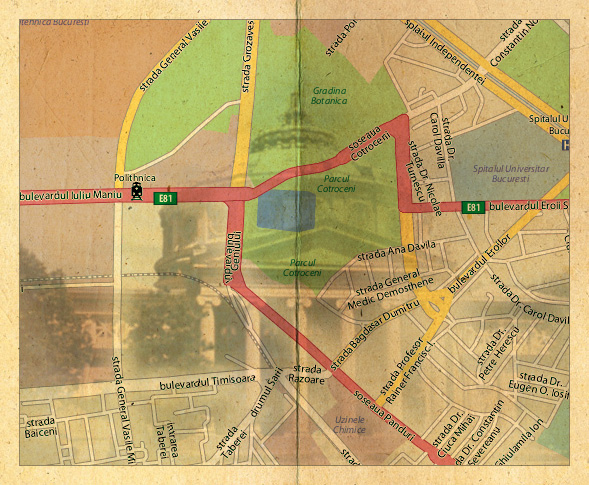
Put your city on the map in 4 layers. Create an artistic old map of your area.

Here’s what you should be achieving:

psd map tutorial step5

Step 1: Getting the actual map

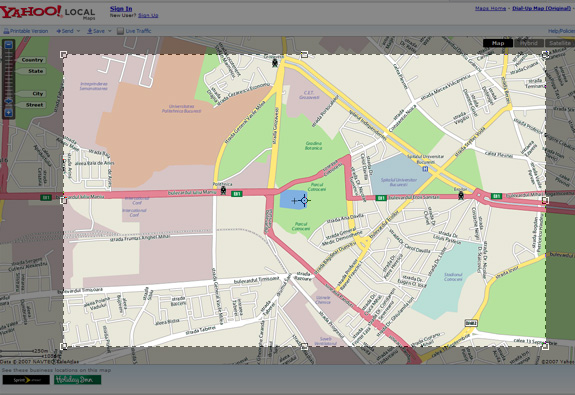
Go to maps.yahoo.com, find your area and zoom in to a desired level—I went in somewhere between City and Street view in some area in Bucharest, Romania but you can also do a Country view. If your part of the world isn’t covered by yahoo maps, try google maps or get a regular image of a map fmor the area you need.

Update: Simon suggests in a comment below that to avoid any legal implications in using a screen capture from Google or Yahoo Maps in your artwork, you should rather go with an open map provider as openstreetmap.org.

Hit the PrintScreen key, go in Photoshop and paste it in a new document and then Crop (C key) the image keeping only the desired part. Use the Patch Tool or the Healing Brush Tool to remove the center cross.

psd map tutorial

Step 2: Applying the old paper texture to give it a vintage look

For the second step you need an old grunge paper texture. I used this free image from cgtextures.

Continue reading…

45 Comments.